
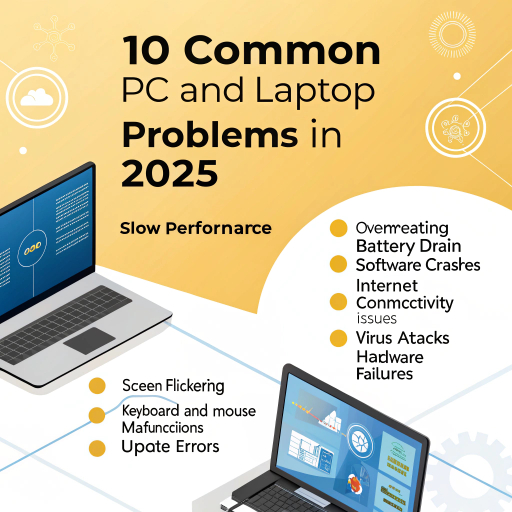

Introduction
PC laptop problems and fixes 2025 are essential knowledge for every user who wants fast, stable, and secure system performance. In 2025, laptops and desktop computers are used for work, freelancing, education, gaming, and entertainment, yet common issues like slow speed, overheating, software crashes, and malware still affect millions of users.
The good news is that most PC and laptop problems can be fixed at home without visiting a technician or spending money on repairs. In this complete Tecmintly guide, you will learn 10 common PC & laptop problems and how to fix them step by step, using simple methods that work in 2025.
1. Slow PC or Laptop Performance
Symptoms:
Long startup time
Programs open slowly
Freezing and lagging
System becomes unresponsive
Causes:
Too many startup programs, low RAM, old HDD, malware, and temporary junk files.
Fixes:
Disable unnecessary startup apps using Task Manager (Windows) or Login Items (Mac)
Run Disk Cleanup or storage optimization
Upgrade from HDD to SSD for instant speed boost
Increase RAM for better multitasking
Scan for malware regularly
Result: Faster boot time, smooth browsing, and better multitasking performance.
2. Overheating Issues
Symptoms:
Laptop becomes extremely hot
Loud fan noise
Sudden shutdowns during gaming or heavy work
Causes:
Dust inside fans, poor airflow, thermal paste drying, and high CPU usage.
Fixes:
Clean the dust from cooling vents and internal fan
Use a cooling pad for better airflow
Place laptop on a hard surface (not on bed or pillow)
Close unnecessary background programs
Change thermal paste if the laptop is old
Pro Tip: Monitor CPU & GPU temperature using HWMonitor or iStat Menus.
Result: Cooler system, better performance, and longer hardware life.
3. Blue Screen of Death (BSOD) on Windows
Symptoms:
Sudden blue screen crash
Automatic system restart
Error messages with codes
Causes:
Faulty drivers, bad RAM, corrupted system files, or hardware failure.
Fixes:
Update Windows and all device drivers
Remove recently installed hardware or software
Run Windows Memory Diagnostic Tool
Check disk errors using CHKDSK command
Run SFC /scannow to repair system files
Result: Reduced crashes and improved system stability.
4. Slow Internet or Wi-Fi Problems
Symptoms:
Slow website loading
Video buffering
Weak Wi-Fi signal
Random disconnections
Causes:
Router issues, outdated drivers, ISP problems, interference.
Fixes:
Restart your router and modem
Update network adapter drivers
Move closer to the router
Use Ethernet cable for stable speed
Limit background downloads
Pro Tip: Use NetSpot or Wi-Fi Analyzer to detect weak signals.
Result: Faster and stable internet connection.
5. Software Crashes or Freezing
Symptoms:
Applications close automatically
Software stops responding
System becomes slow after launching apps
Causes:
Outdated software, corrupted cache, low system resources.
Fixes:
Update apps to the latest version
Clear temporary files and cache
Install pending system updates
Reinstall problematic programs
Increase RAM if crashes are frequent
Result: Stable and smooth app performance.
6. Fast Battery Drain (Laptop Users)
Symptoms:
Battery discharges very quickly
Low standby time
Battery health decreases
Causes:
High brightness, background apps, old battery, power-hungry programs.
Fixes:
Reduce screen brightness
Turn off Bluetooth & Wi-Fi when not needed
Enable Battery Saver Mode
Calibrate battery once a month
Replace battery if health drops below 60%
Result: Longer battery life and improved portability.
7. No Sound or Audio Problems
Symptoms:
No audio output
Distorted sound
Headphones not detected
Causes:
Driver issues, incorrect sound settings, damaged speakers.
Fixes:
Check volume and mute settings
Set correct playback device
Update or reinstall audio drivers
Test speakers using another device
Run Windows Audio Troubleshooter
Result: Proper and clear sound restored.
8. Hard Drive or SSD Problems
Symptoms:
Very slow file transfers
File corruption
Strange clicking noise (HDD)
Causes:
Bad sectors, aging drives, power failures, physical damage.
Fixes:
Run CHKDSK (Windows) or Disk Utility (Mac)
Backup important data immediately
Upgrade to a modern SSD
Defragment HDD regularly (not for SSD)
Result: Healthy storage and faster data access.
9. USB & Peripheral Devices Not Detected
Symptoms:
USB not recognized
Mouse/keyboard stops working
Printer not detected
Causes:
Faulty USB ports, driver corruption, power issues.
Fixes:
Try another USB port
Update or reinstall drivers
Check hardware compatibility
Restart PC Result: Peripherals work smoothly again.
Use Device Manager to scan for hardware changes
10. Malware or Virus Infection
Symptoms:
Pop-ups and ads
System becomes slow
Unknown programs run in background
Browser redirection
Causes:
Unsafe downloads, pirated software, phishing websites.
Fixes:
Run Windows Defender / Antivirus full scan
Remove suspicious software
Keep OS and browser updated
Avoid untrusted websites and cracked software
Result: Secure and virus-free PC or laptop.
Bonus Tips to Prevent PC & Laptop Problems in 2025
Always keep your operating system updated
Uninstall unused programs regularly
Use cloud backup or external hard drive
Install a trusted antivirus
Use surge protectors to protect hardware
Clean your laptop physically every 6 months
Monitor system health using Speccy or HWMonitor
Conclusion
Understanding these PC & laptop problems and fixes in 2025 can save you from expensive repairs, data loss, and system downtime. Regular maintenance, safe internet usage, timely upgrades, and proper system monitoring help your device stay fast, cool, and secure for years. Whether you are a student, freelancer, gamer, or office worker, these solutions will keep your computer running like new.These PC laptop problems and fixes 2025 apply to Windows 10, Windows 11, and modern MacBooks.
Also
How to Speed Up a Slow Laptop — 10 Proven Fixes
10 Essential Windows 11 Settings You Should Change Right Now
Top 10 Hidden Android Settings to Super-Charge Your Phone
FAQ – PC & Laptop Problems (Featured Snippet Ready)
Q1: Why is my laptop slow in 2025?
Because of outdated hardware, many background apps and slow HDD storage.
Q2: How can I stop my laptop from overheating?
Clean fans, use a cooling pad, avoid soft surfaces, and reduce CPU load.
Q3: Is upgrading to SSD worth it in 2025?
Yes. SSD upgrades provide up to 10x faster performance than HDDs.
Q4: How often should I scan my PC for viruses?
At least once a week using updated antivirus software.


